HookHouse Pro User Guide
Welcome to HookHouse Pro, the music production intelligence platform for AI-generated music. This guide walks you through every feature, from your first generation to mastering a full album.
Getting Started
What is HookHouse Pro?
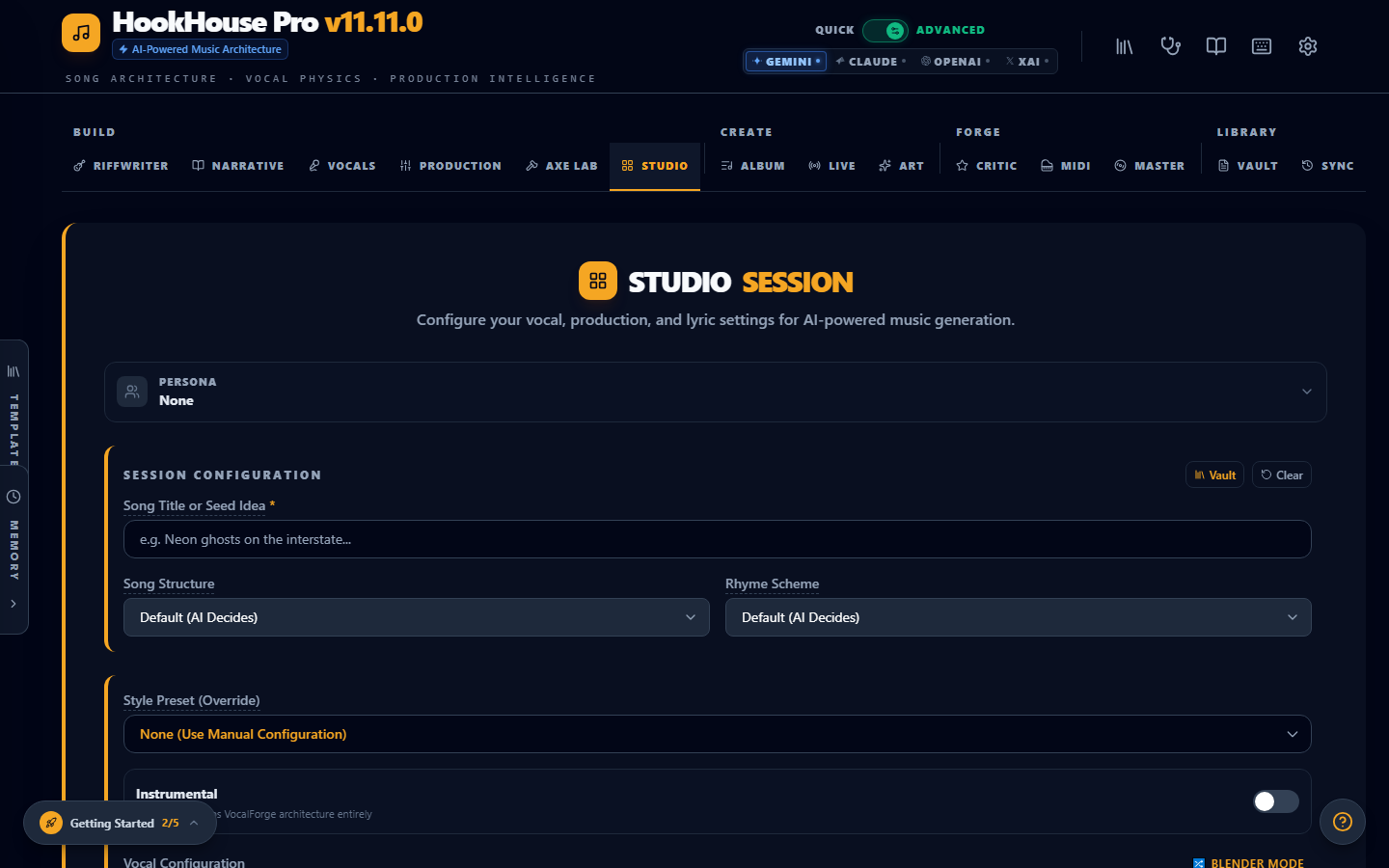
HookHouse Pro is an all-in-one workstation for creating AI-generated music. It combines songwriting tools, vocal profiling, instrument stacking, mix engineering, MIDI generation, and audio mastering into a single interface. The platform works with Suno for final audio generation and uses LLM providers (Gemini, Claude, OpenAI, or xAI/Grok) to power its AI features.
You bring the creative vision. HookHouse handles the technical scaffolding — genre DNA, vocal character, instrument separation, frequency management, and production polish.
Setting Up Your API Key
Before generating anything, you need an LLM API key. HookHouse supports four providers:
- Click the Settings gear icon in the top-right header area.
- Select your preferred provider: Gemini (recommended for free tier), Claude, OpenAI, or xAI/Grok.
- Paste your API key into the field.
- The status indicator turns green when the key is verified.
Tip: Gemini offers a generous free tier and works great for most workflows. You only need one provider — not all four.
Setting Up Your Suno Token
HookHouse can generate and sync clips directly with Suno, but it needs a Bearer Token (JWT) from your Suno account to authenticate. Browsers block session cookies from being read by other apps, so HookHouse uses the JWT approach instead. This is separate from your LLM API key.
- Log in to suno.com in your browser.
- Open Developer Tools (F12) and go to the Console tab.
- Paste the extraction script (shown in the HookHouse Settings panel) and press Enter. It will output your JWT.
- Copy the result.
- In HookHouse, click the Settings gear icon and paste the token into the Suno Token field.
- The credit counter in the header will update once the token is verified.
Tip: JWTs expire periodically (typically ~1 hour). If generation or sync stops working, repeat these steps to grab a fresh token. HookHouse will attempt to auto-renew when possible.
If you encounter a CAPTCHA error from Suno:
Suno requires a CAPTCHA token for generation, but it never actually displays a visible CAPTCHA challenge. The only workaround is to manually trigger a generation on Suno's site:
- In HookHouse, go to the Output tab and copy the JS Console Code (the script that auto-fills Suno's create form).
- Open suno.com/create in your browser.
- Open Developer Tools (F12) → Console tab.
- Paste the JS Console Code and press Enter. This fills in the lyrics, style, and title fields.
- Click Create on Suno's site manually. This triggers Suno's invisible CAPTCHA in the background and registers a valid token for your session.
- After that manual generation succeeds, HookHouse's direct Suno integration should work again.
Why this happens: Suno's CAPTCHA is invisible — it runs silently during their Create button flow. Since HookHouse calls the API directly, it never triggers that invisible CAPTCHA. Doing one manual generation on Suno's site resolves it.
Quick Mode vs Advanced Mode
HookHouse has two interface modes, toggled in the top-right corner:
- Quick Mode shows only the Studio and Output tabs. Perfect for fast generation when you already know what you want.
- Advanced Mode unlocks all tabs across four groups: BUILD, CREATE, FORGE, and LIBRARY. This is where the full power lives.
Start in Quick Mode to get your feet wet, then switch to Advanced when you want deeper control.
Your First Generation
Here is the fastest path from zero to a finished song prompt:
- Open the Studio tab (it loads by default).
- Type a song concept — a sentence or two describing the vibe, story, or emotion.
- Pick a genre blend. Select 2-3 genres and HookHouse merges their DNA automatically.
- Add mood tags to fine-tune the feel (e.g., "gritty," "nostalgic," "triumphant").
- Click Generate. The AI builds a complete song seed with lyrics, style tags, structure, and production notes.
- Review the output in the Output section below.
- Click Copy to Suno to transfer the prompt directly, or use Copy Lyrics / Copy Style Tags separately.
That is the core loop. Everything else in HookHouse exists to give you more control over each piece of that pipeline.
BUILD — Songwriting
The BUILD group contains the tabs for composing, configuring, and shaping your song before generation.
Studio
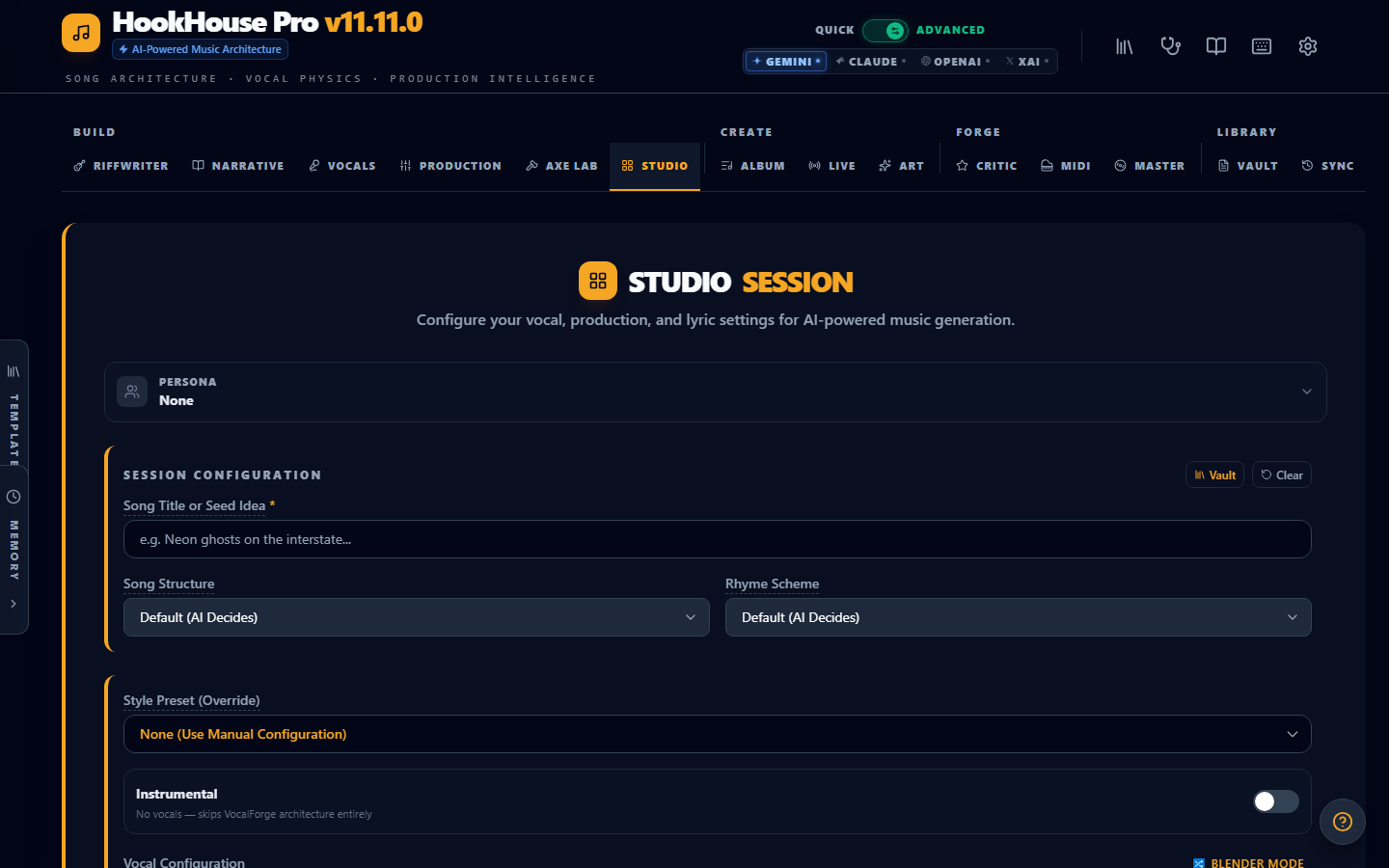
The Studio tab is your session command center. This is where you configure everything that feeds into a generation.
- Song Concept — Describe what the song is about in plain language. A few sentences is plenty.
- Genre Blending — Pick up to three genres. HookHouse blends their structures, instrumentation, and vocal characteristics using Genre DNA profiles.
- Mood Tags — Add descriptive tags that shape the emotional tone. These influence lyric language, tempo suggestions, and production weight.
- Structure Preferences — Choose a song structure (verse-chorus-verse, AABA, through-composed, etc.) or let the AI decide based on genre norms.
- Must-Haves / Avoids — Specify elements you definitely want (e.g., "guitar solo in the bridge") or want to exclude (e.g., "no falsetto").
- Style Presets — Load a saved configuration that pre-fills vocals, production, and genre settings in one click. When a style preset is active, the Vocals and Production tabs are grayed out since the preset overrides them.
RiffWriter
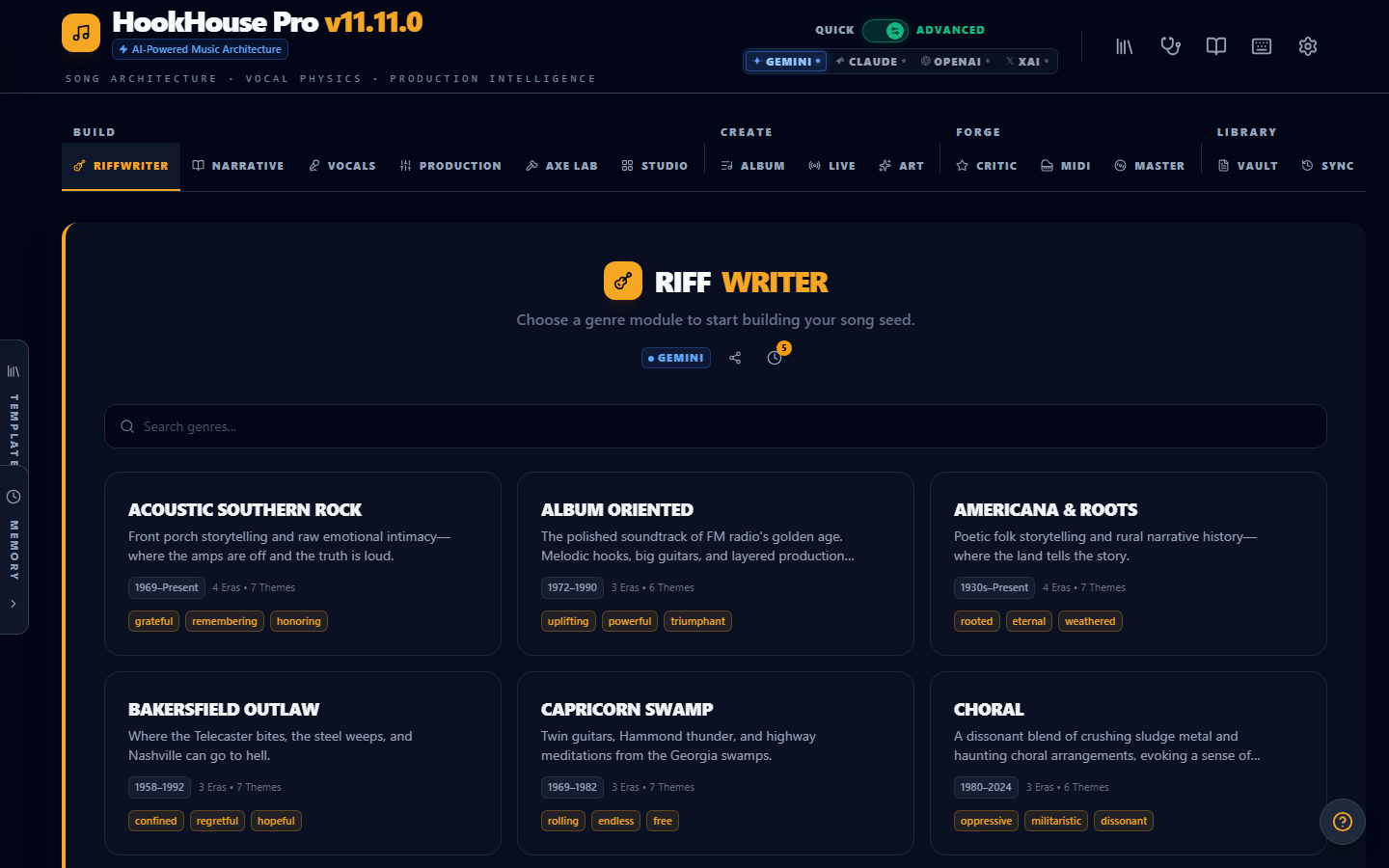
RiffWriter is the AI songwriting assistant. It lives in its own tab and generates song seeds independently from Studio.
Enter a vibe description — anything from "70s southern rock bar fight anthem" to "ambient electronic lullaby with glitch textures." RiffWriter returns fully formed song seeds including title, concept, suggested structure, BPM, key signature, and style tags. You can copy any seed into Studio to use as your generation starting point.
Narrative Engine
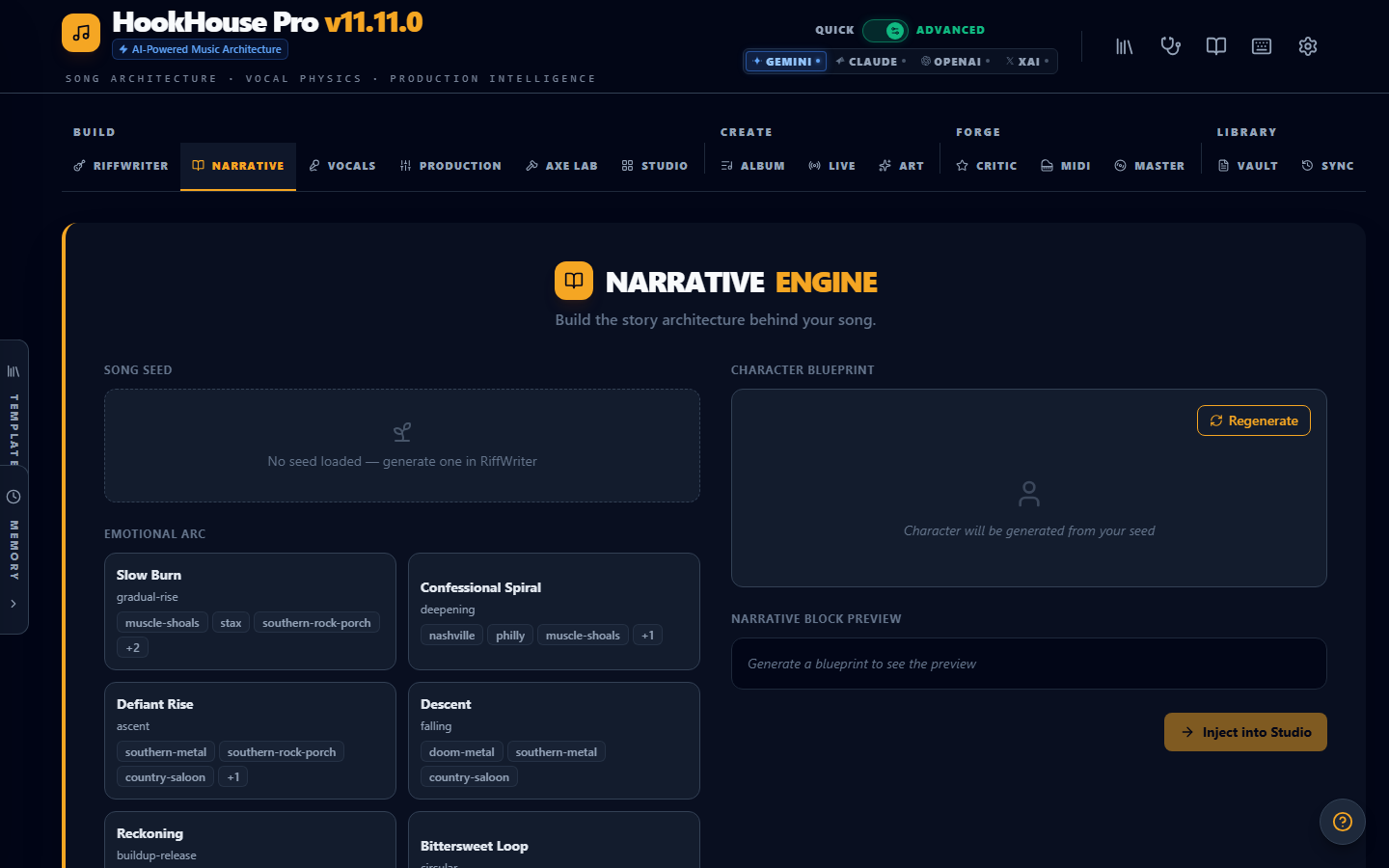
The Narrative Engine maps story arcs onto songs. It is built for concept-driven writing where the lyrics need to follow a deliberate emotional trajectory.
Define your narrative themes, pick a character perspective (first person, third person, omniscient), set emotional waypoints across the song sections, and choose a narrative arc type (rise-fall, redemption, descent, circular). The engine feeds these constraints into the lyric generation process so the AI writes with intentional dramatic structure rather than generic verse-chorus filler.
Vocals
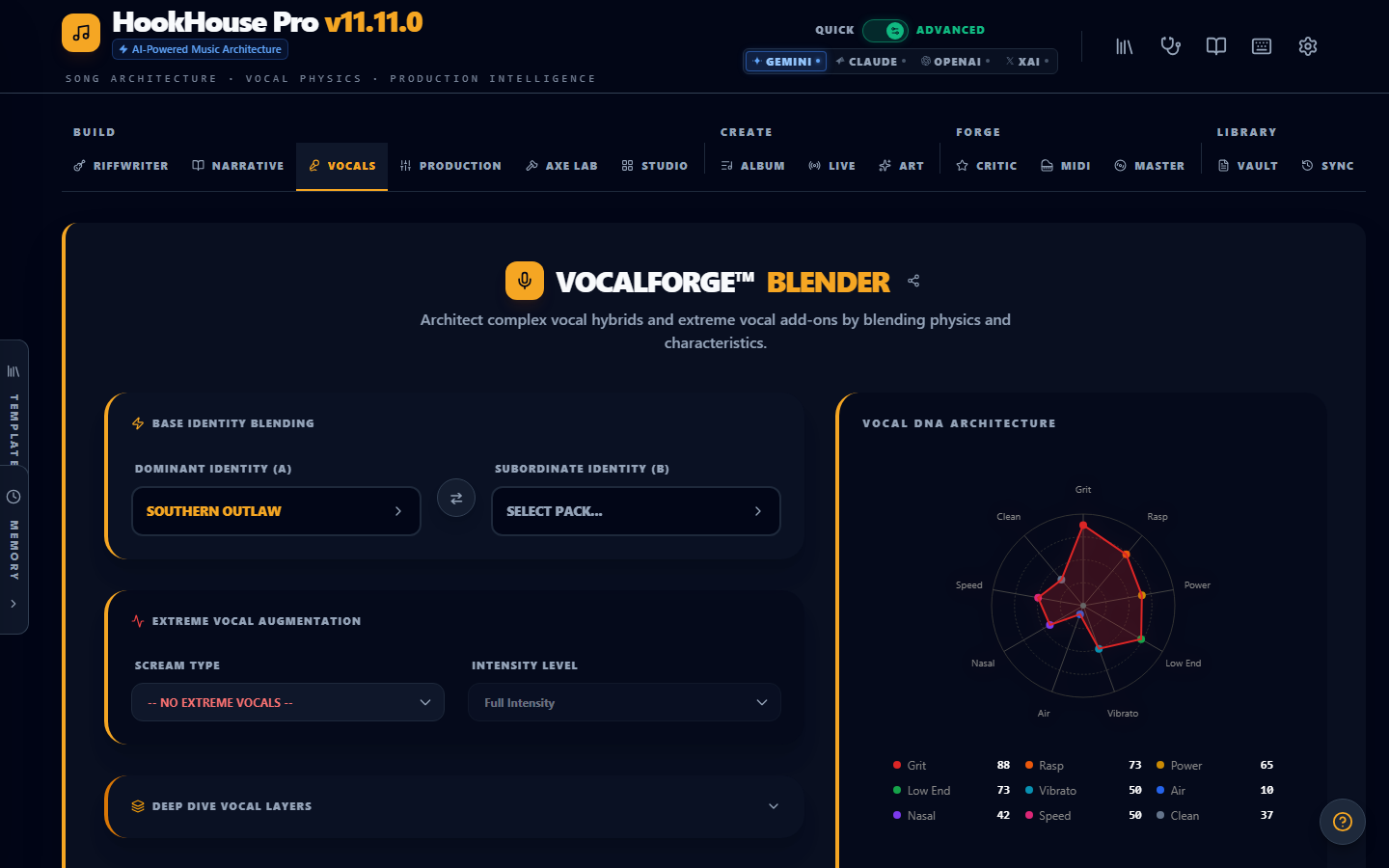
The Vocals tab controls everything about the voice character in your generation.
- Vocal Pack Selection — Choose from built-in vocal profiles or your own custom packs. Each profile defines timbre, range, texture, and stylistic tendencies.
- Vocal Blender — Blend two vocal packs together with a slider. At 50/50 you get an even hybrid; slide toward either end to weight one voice more heavily.
- Deep Dive Layers — Fine-tune dialect/accent, vocal aging (young to weathered), breath character, emotional arc across sections, and vibrato style.
- Scream Augmentation — Add controlled distortion, screams, or growl layers for heavier genres.
- Harmony & Choir — Configure harmony stacking (thirds, fifths, octaves) and gang vocal / choir sections.
Production
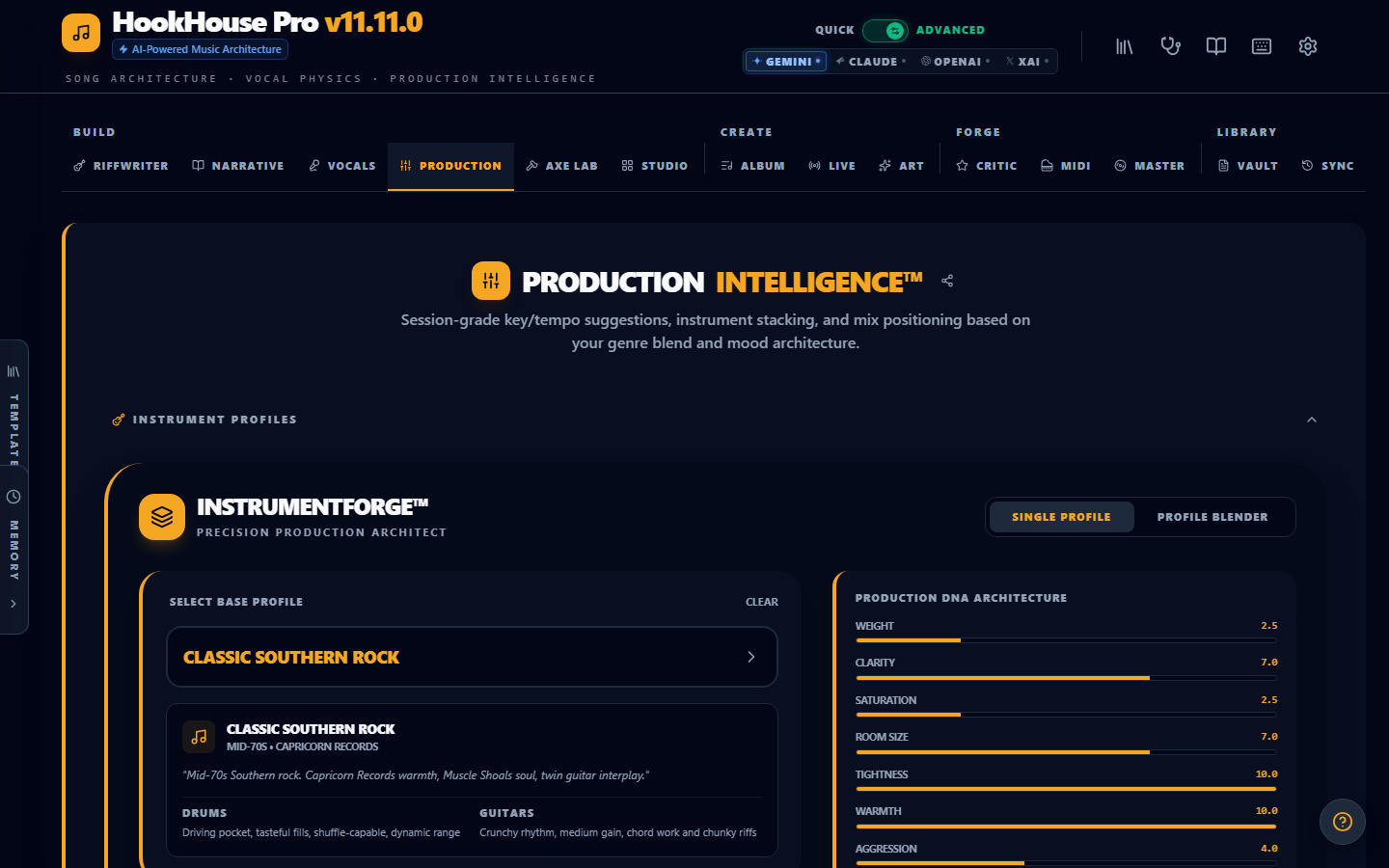
The Production tab handles everything that is not vocals — the instrumental backbone of your track.
- Instrument Stack — Build your instrument list. Each instrument has its own profile with tonal character, playing style, and role (lead, rhythm, pad, bass, percussion).
- Key & Tempo — Set the song's key signature and BPM, or let the AI suggest based on genre norms.
- Mix Positioning — Assign each instrument a position in the stereo field and frequency range. The frequency conflict detector highlights overlapping instruments so you can separate them before generation.
- Dynamic Range Profiles — Control how much dynamic variation each section gets (verse quiet, chorus loud, bridge atmospheric).
- Genre DNA Analyzer — Automatically detects which production elements are typical for your selected genres and flags anything unusual.
Axe Lab
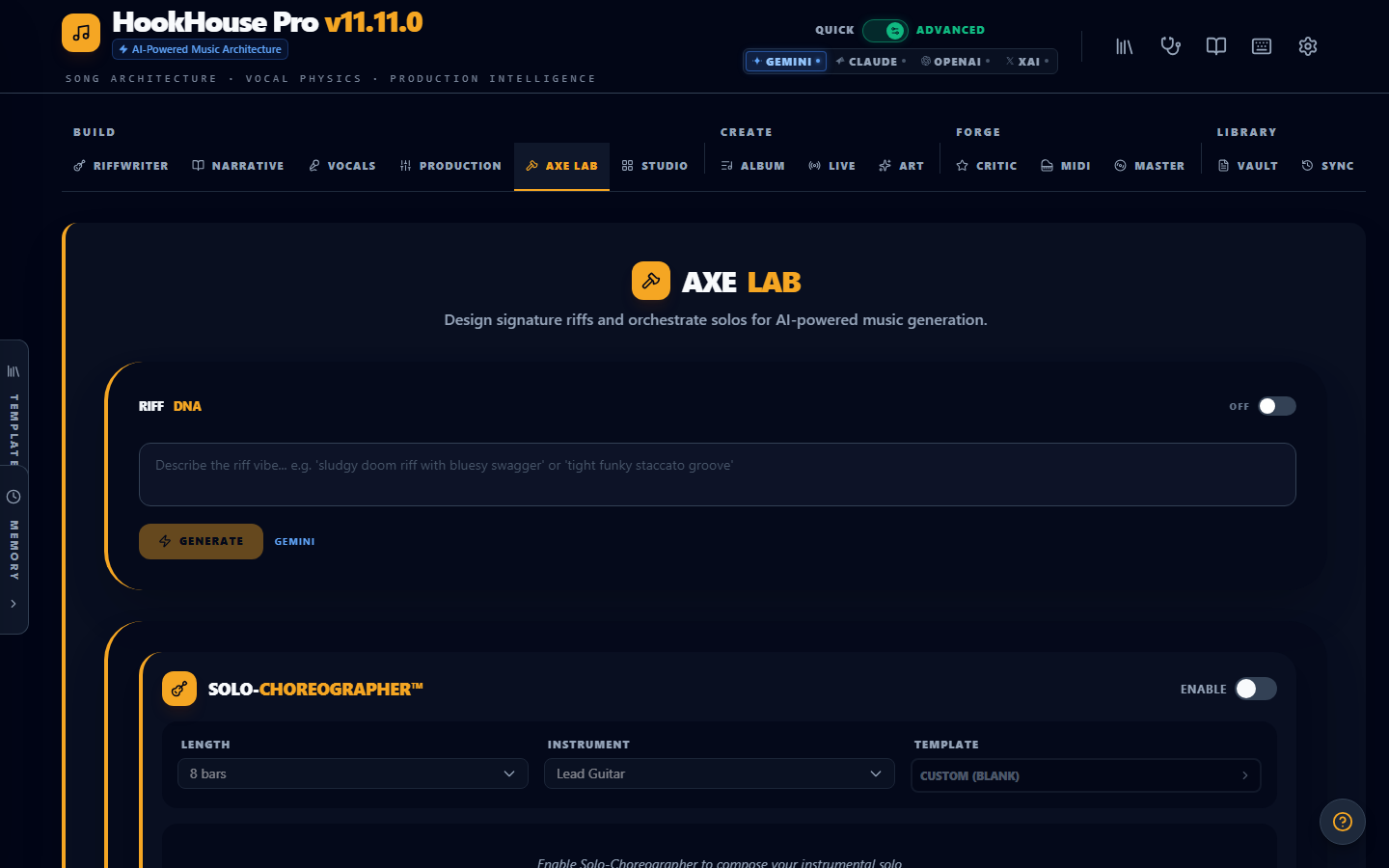
Axe Lab is the guitar-focused workshop containing Riff DNA and the Solo Choreographer.
- Riff DNA — Configure picking patterns, grit level, tonal character, and rhythmic feel for guitar riffs. Save snapshots for reuse.
- Solo Choreographer — Map out solo sections with technique progressions (bends, slides, tapping, sweep picking). Set intensity curves and note density across the solo duration.
Axe Lab settings are independent of style presets, so your guitar configuration persists even when you switch presets.
CREATE — Beyond Singles
The CREATE group extends HookHouse beyond single-song generation.
Album Mode
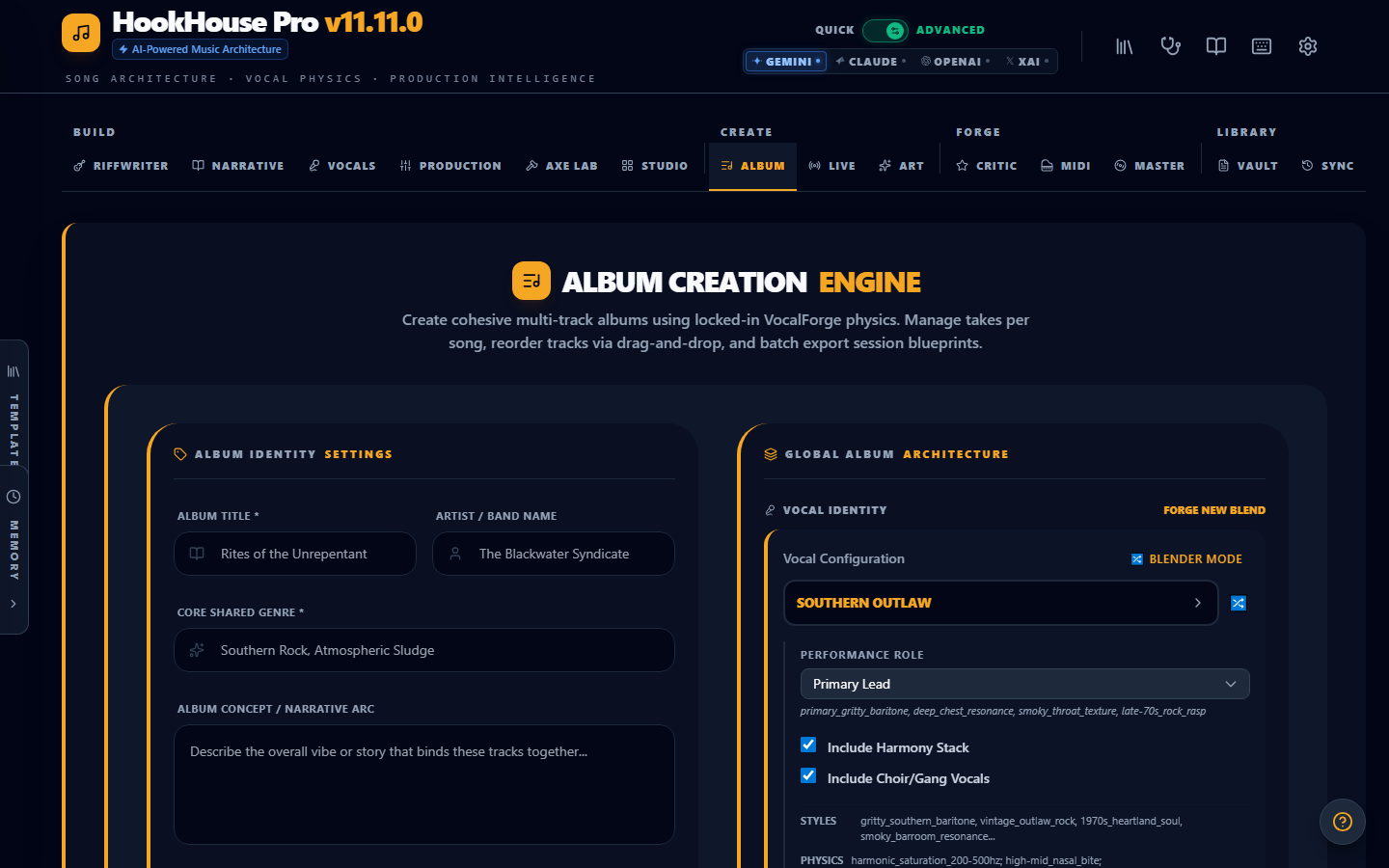
Plan and generate complete albums with thematic coherence.
- Define an album concept — the overarching theme, story, or mood that ties tracks together.
- Set the track count and any per-track genre variations.
- The coherence engine ensures tracks share thematic DNA while still having individual identity.
- Generate tracks individually or in batch, and reorder them with drag-and-drop.
Album Mode is ideal for concept albums, EPs, or themed playlists where you want songs that feel like they belong together.
Live Studio
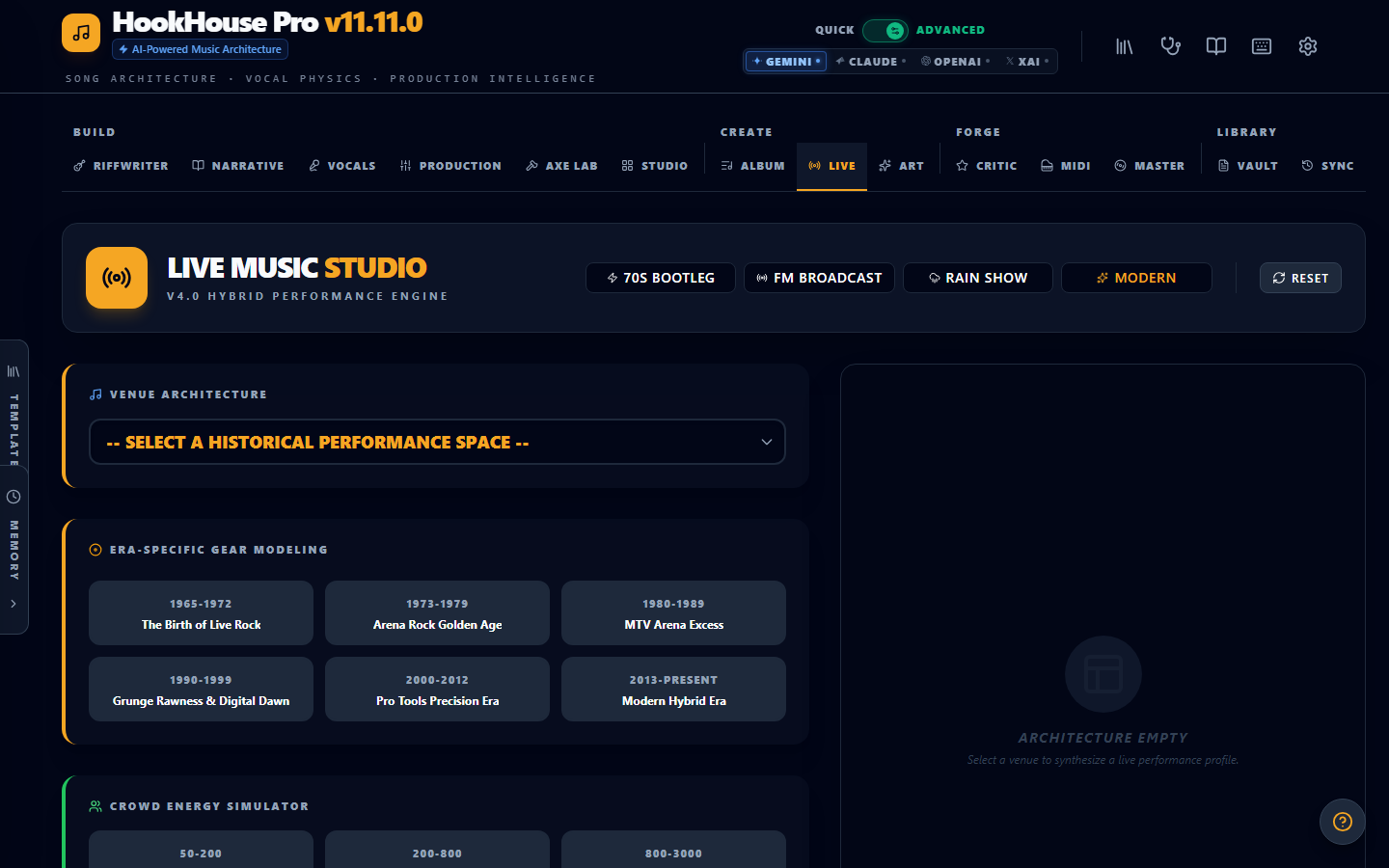
Simulate live performance contexts. This shapes the production output to sound like it was performed in a specific setting.
- Venue Type — Club, arena, theater, outdoor festival, church, basement, etc.
- Era — Choose a decade to influence recording aesthetic (70s warmth, 80s reverb, 90s grunge, modern clarity).
- Crowd Energy — From intimate and quiet to rowdy and electric.
- Soundboard Profile — Analog warmth, digital clean, lo-fi tape, broadcast quality.
- Stage Plot — Instrument placement on stage, which affects stereo imaging.
- Technical Mishaps — Add realism with feedback squeals, cable hum, monitor bleed, or dropped signals.
Quick presets include 70s Bootleg, FM Broadcast, and Rain Show for instant vibe.
Art
Generate album artwork concepts from text descriptions. Describe the visual style, color palette, and imagery, and the AI produces artwork direction that matches your album's aesthetic.
FORGE — Refine & Export
The FORGE group takes your generated content and refines, converts, or masters it.
Critic
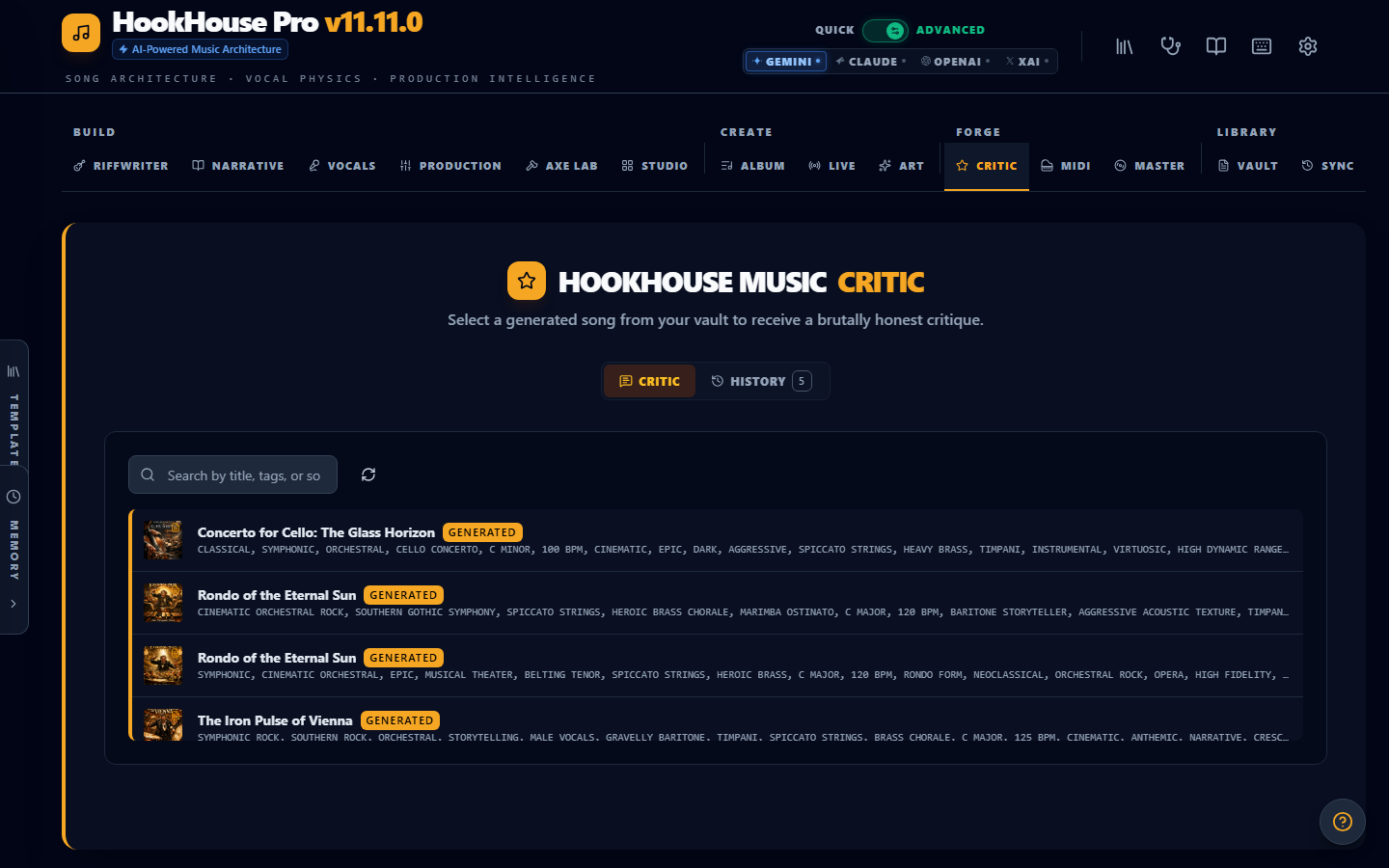
The AI music critic evaluates your generated output across multiple dimensions: lyrics, vocal choices, production decisions, and genre authenticity. Each dimension gets a score and detailed feedback.
The key feature is Regenerate with Advice — click it and the critic's suggestions are automatically fed back into a new generation, creating an iterative improvement loop without manual prompt editing. The History sub-tab tracks all critique sessions so you can see how your output improves over rounds.
MidiForge
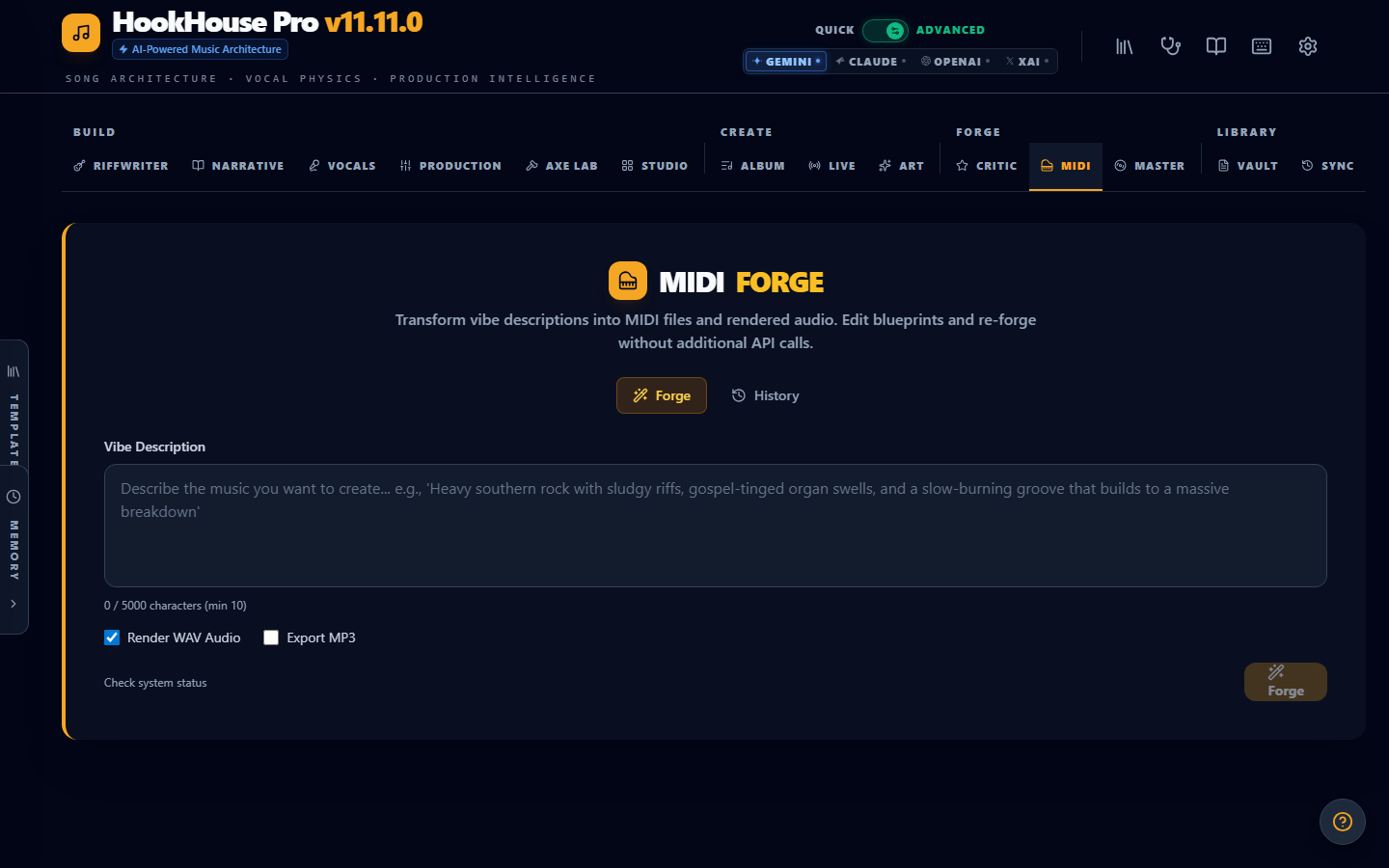
Convert vibe descriptions into playable MIDI files.
- Describe a musical feel in plain language (e.g., "funky bass line with syncopated 16th notes").
- The AI designs a MIDI blueprint — note sequences, velocities, timing, and instrument assignments.
- FluidSynth renders the blueprint into audio you can preview.
- Download the MIDI file for use in your DAW, or edit the blueprint and re-forge.
MidiForge bridges the gap between AI-generated song prompts and actual playable instrument parts.
MasterForge
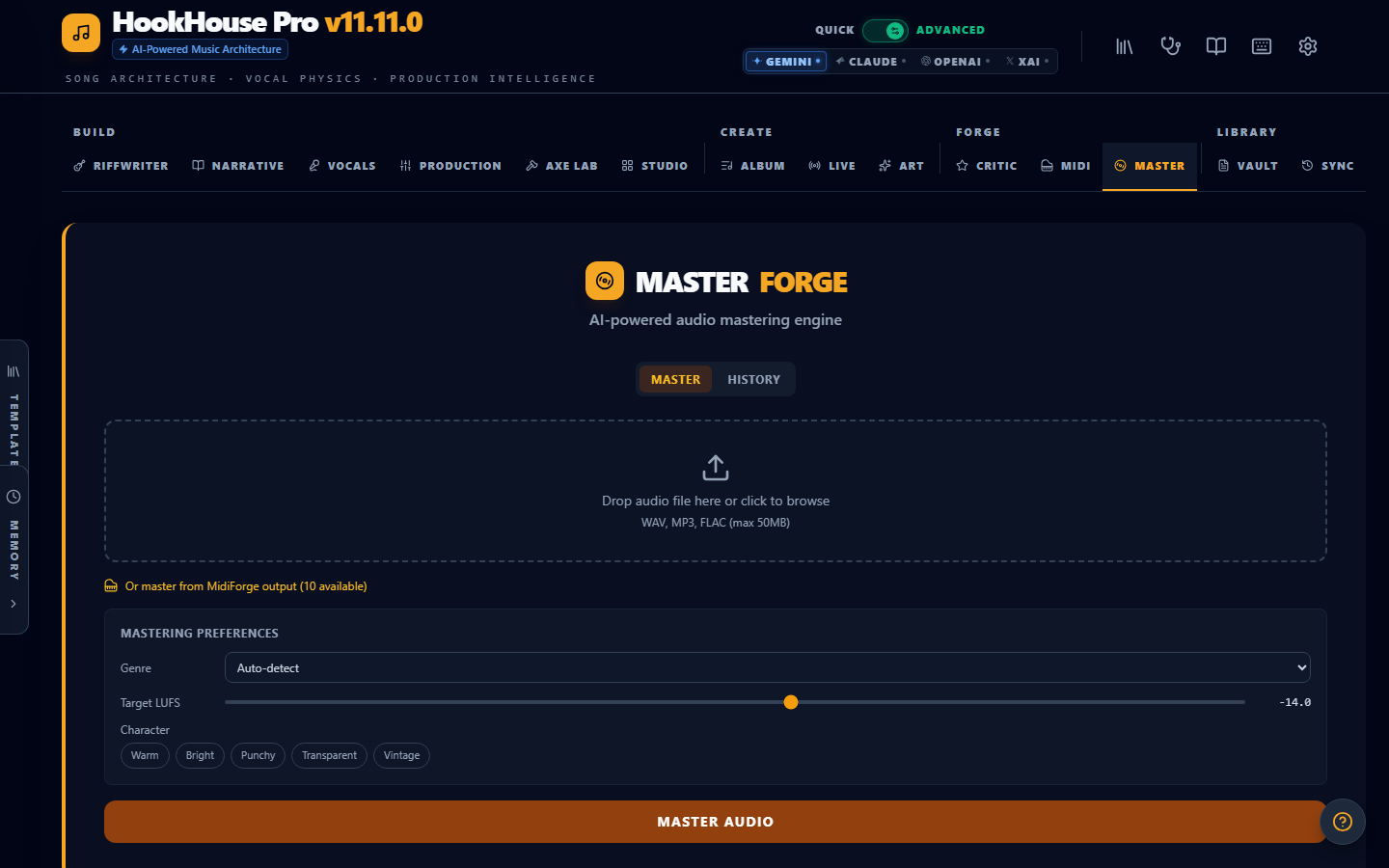
Audio mastering powered by C++ DSP processing.
- Upload your audio file (WAV, MP3, FLAC).
- The AI analyzes frequency content, dynamics, and stereo image, then designs a mastering chain.
- Processing applies EQ, compression, limiting, stereo enhancement, and loudness targeting.
- Stem Separation (powered by Demucs AI) splits your mix into vocals, drums, bass, and other.
- Remix Mode lets you adjust individual stem levels after separation.
- Export to 6 formats with platform-specific presets for Spotify, Apple Music, YouTube, SoundCloud, and more.
LIBRARY — Manage Your Work
The LIBRARY group is where everything you create lives and where you can analyze your creative patterns.
Vault
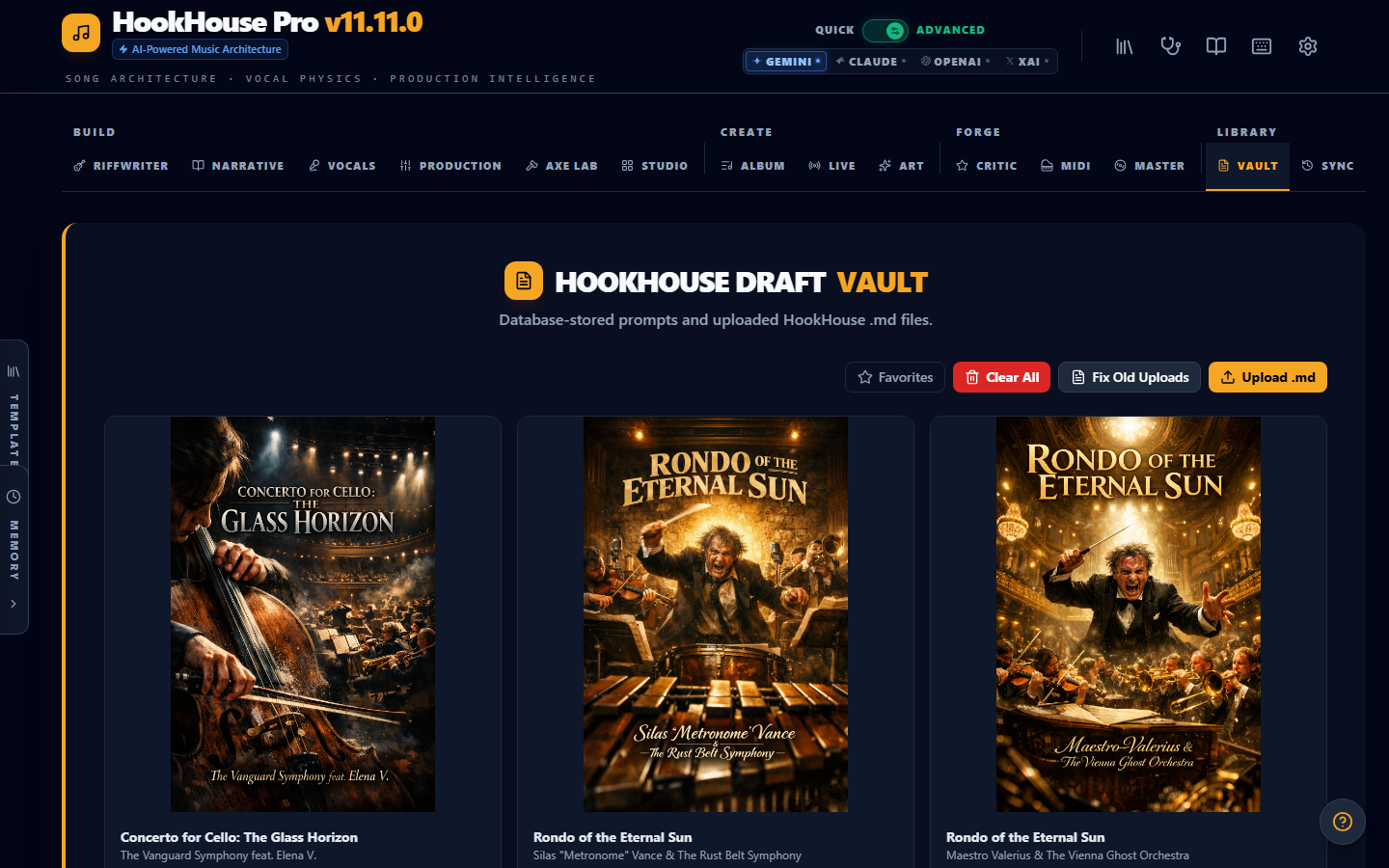
The Vault is your draft storage. Every generation automatically saves here.
- Browse and Search — Filter by title, genre, date, or tags.
- Load to Studio — Pull any saved draft back into Studio for editing or re-generation.
- Upload Markdown — Import song drafts written outside HookHouse.
- A/B Comparison — Select two vault entries and compare them side-by-side to see exactly what changed between versions.
Sync / Session History
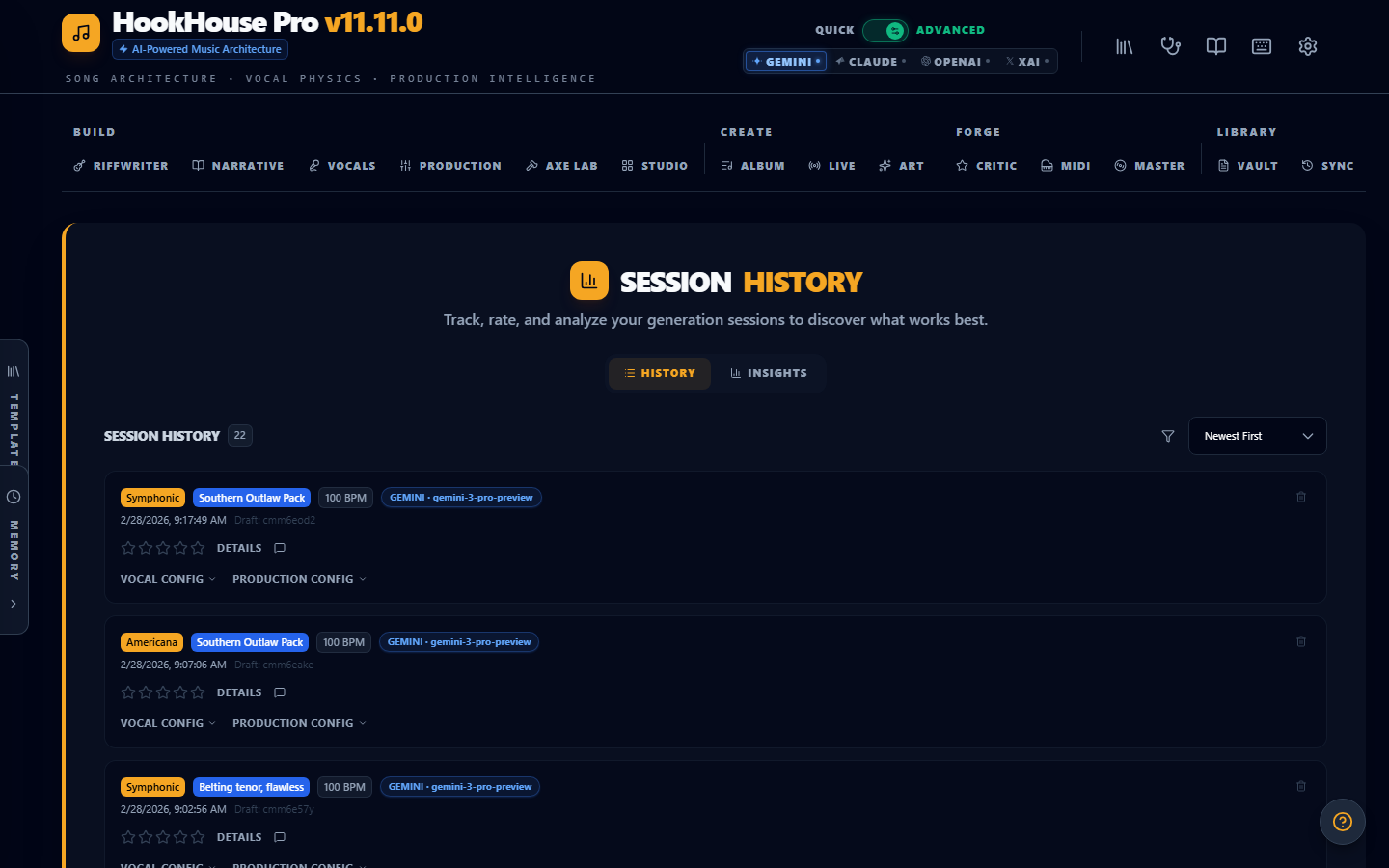
Track your generation sessions over time with dimensional ratings.
After each generation, rate the output across five dimensions: Overall, Vocal, Production, Lyrics, and Genre Fit. The Insights panel surfaces your best-performing configurations — which genre combos, vocal packs, and production settings consistently produce your highest-rated results.
Analytics
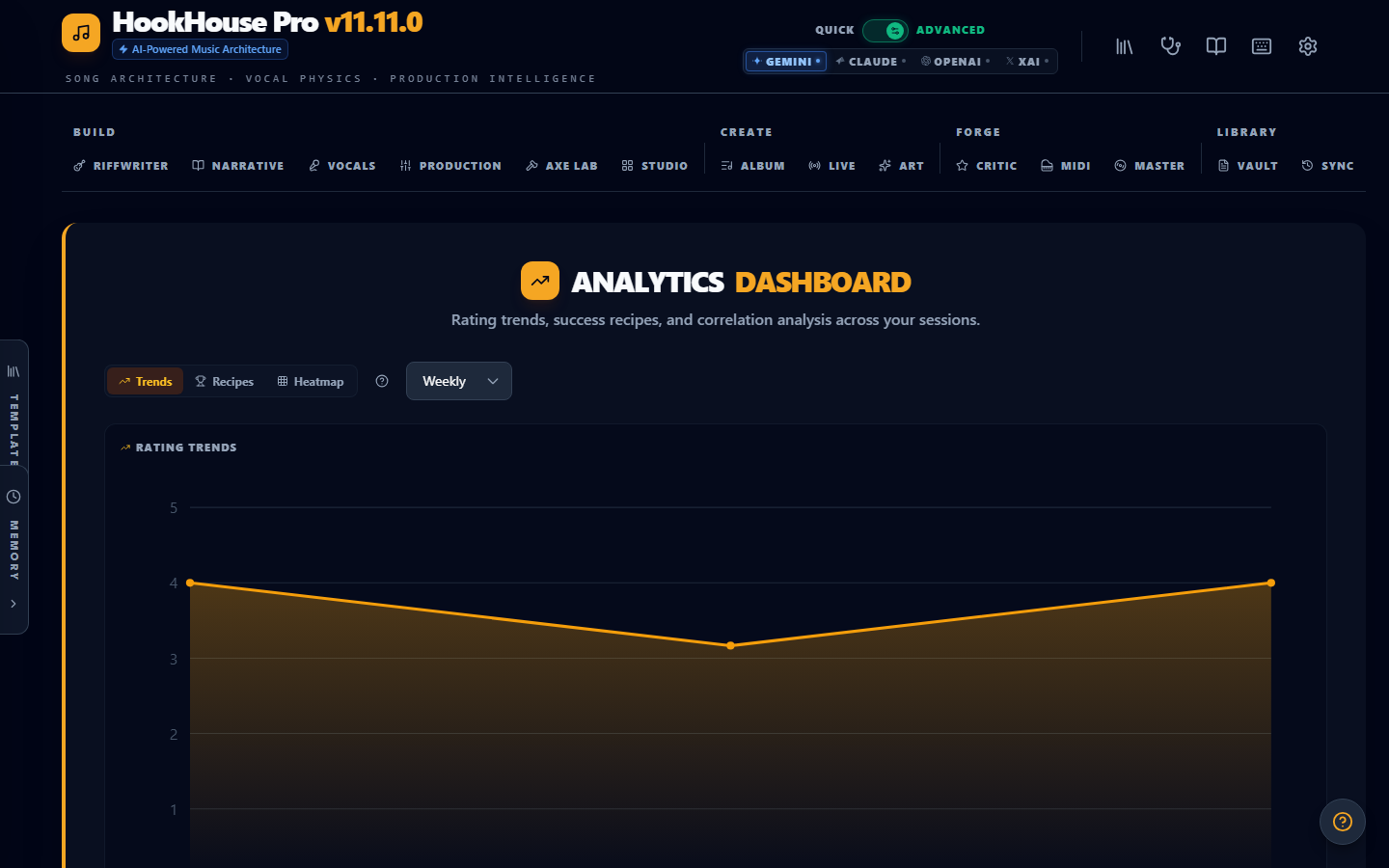
The Analytics dashboard visualizes your creative data.
- Rating Trends — Chart how your output quality evolves over time.
- Success Recipes — Discover which genre + vocal + production combinations score highest.
- Correlation Heatmaps — See how rating dimensions relate to each other (e.g., does high vocal score correlate with high overall score?).
- Session Patterns — Identify your most productive times and workflows.
Suite
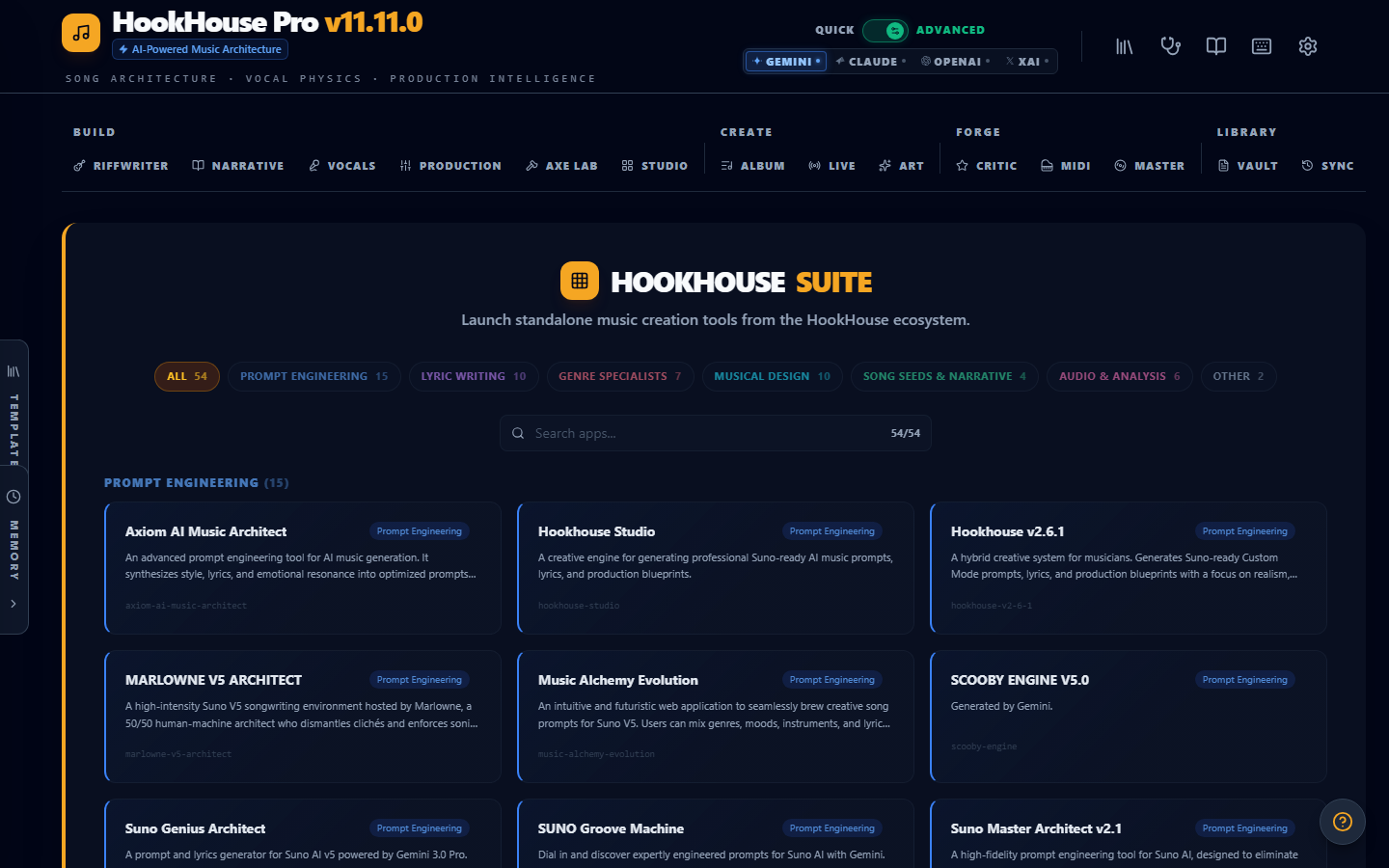
The Suite tab hosts standalone tools embedded within HookHouse. Browse app cards, launch tools in an iframe, search by name, and rename apps. Suite apps communicate with HookHouse through a bridge API for actions like injecting content into Studio, saving to the Vault, or triggering Suno export.
Tips & Workflows
Keyboard Shortcuts
Click the keyboard icon in the header to open the shortcut reference panel. Key shortcuts let you switch tabs, trigger generation, toggle modes, and navigate without touching the mouse.
Share Codes
Export your entire session configuration as a share code — a compact string that encodes your genre blend, vocal settings, production stack, and preferences. Send it to a collaborator and they can import it to get the exact same starting point. Great for remote co-writing sessions.
Suno Integration
HookHouse is designed to feed directly into Suno for final audio generation.
- Copy Style Tags — Sends the genre/mood/production tags formatted for Suno's style prompt field.
- Copy Lyrics — Sends the lyrics with section markers formatted for Suno.
- Suno Direct Export — One-click transfer that opens Suno with everything pre-filled.
- Prompt Formatting — HookHouse automatically formats prompts to stay within Suno's character limits and uses Suno-friendly terminology.
Session Memory & Variation Chains
- Session Memory — Save your current Studio configuration (genre, vocals, production, preferences) as a named memory. Load it back anytime to resume exactly where you left off.
- Variation Chains — Spawn variations from any existing generation. The chain tracks parent-child relationships so you can see how your sound evolved through iterations. Branch off at any point to explore different directions.
Style Presets
Style presets are pre-built configurations that set genre, vocals, and production in one click. Use them as starting points, then customize from there. When a preset is active, the Vocals and Production tabs show a "preset override" indicator — switch to manual control anytime by deactivating the preset.
Troubleshooting
Common Issues
- Generation fails or hangs — Verify your API key in Settings. Check that your provider account has remaining credits or quota. Try switching to a different provider temporarily.
- Slow generation — LLM response times vary by provider and load. Gemini is typically fastest. Claude and OpenAI may be slower during peak hours.
API Key Issues
- Gemini — Get your key from Google AI Studio. Free tier has generous limits.
- Claude — Requires an Anthropic API key AND a CORS proxy URL configured in settings (Anthropic does not allow direct browser requests).
- OpenAI — Standard API key from platform.openai.com. Requires a funded account.
- xAI/Grok — API key from the xAI developer portal.
If verification fails, double-check that you copied the full key without leading/trailing spaces and that your network allows outbound HTTPS requests to the provider's API endpoint.
FAQ
Do I need all four API providers? No. You only need one. Gemini is recommended for its free tier. You can switch providers anytime in Settings.
What is Quick Mode? A simplified two-tab view (Studio + Output) for fast generation without the full feature set. Toggle it in the top-right corner.
Where are my drafts saved? In the database, accessible from the Vault tab. They persist across sessions and browser refreshes. You will not lose work.
What genres are supported? HookHouse ships with genre DNA profiles for dozens of genres — rock, metal, blues, jazz, country, hip-hop, electronic, pop, R&B, folk, classical crossover, and many sub-genres. You can blend any combination.
Can I create my own vocal packs? Yes. Use the VocalForge external app (accessible from the Admin Panel) to build custom vocal profiles. They appear alongside the built-in packs in the Vocals tab.